
How It Works · Setup guide
Employer Setup
Prepare the company information and team plan before you sign. Use the employer route, check the benefit design and follow the activation instructions for your business.
Before you start
For business owners, HR teams and the person responsible for establishing and maintaining an employer plan.
Prepare
Have the essentials ready
Gather your company, participant and plan information before making changes.
Follow the steps
Work through the setup
Use the steps and completion checks to keep the plan information consistent.
What to prepare
Keep the relevant information and accepted plan documents at hand.
Official company name, registered office address, business number and contact details.
Employee count, intended benefit program and annual budget.
An authorized signer and someone responsible for invoices, follow-up and employee communications.
Your setup steps
Review each stage against the information and terms for your own plan.
01
Identify the business establishing the plan
Complete Business Information and Contact Information on Tell us about your business. Enter the official corporate name and registered office location, then choose Continue.
The address fields include country, province, city and postal code. The Business Number field is optional at initial entry but required for activation.
Use an accessible administrator email and complete Confirm Email. Provide the contact’s first name, last name and phone number so follow-up reaches the right person.
Ready when: The company and responsible contact are identified accurately.
02
Check the employer record before plan setup
On Review your details, inspect Business Information and Business Contact. Choose Back to correct a detail or Continue when both sections are accurate.
Check spelling, contact email, address and business number against your company records. Resolve mismatches before the agreement is prepared.
Identify the person authorized to sign for the business and the person handling ongoing administration. Arrange the administrator’s account access with Wellbytes as part of activation.
Ready when: The information used for the plan application has been checked.
03
Select My Team and prepare the plan
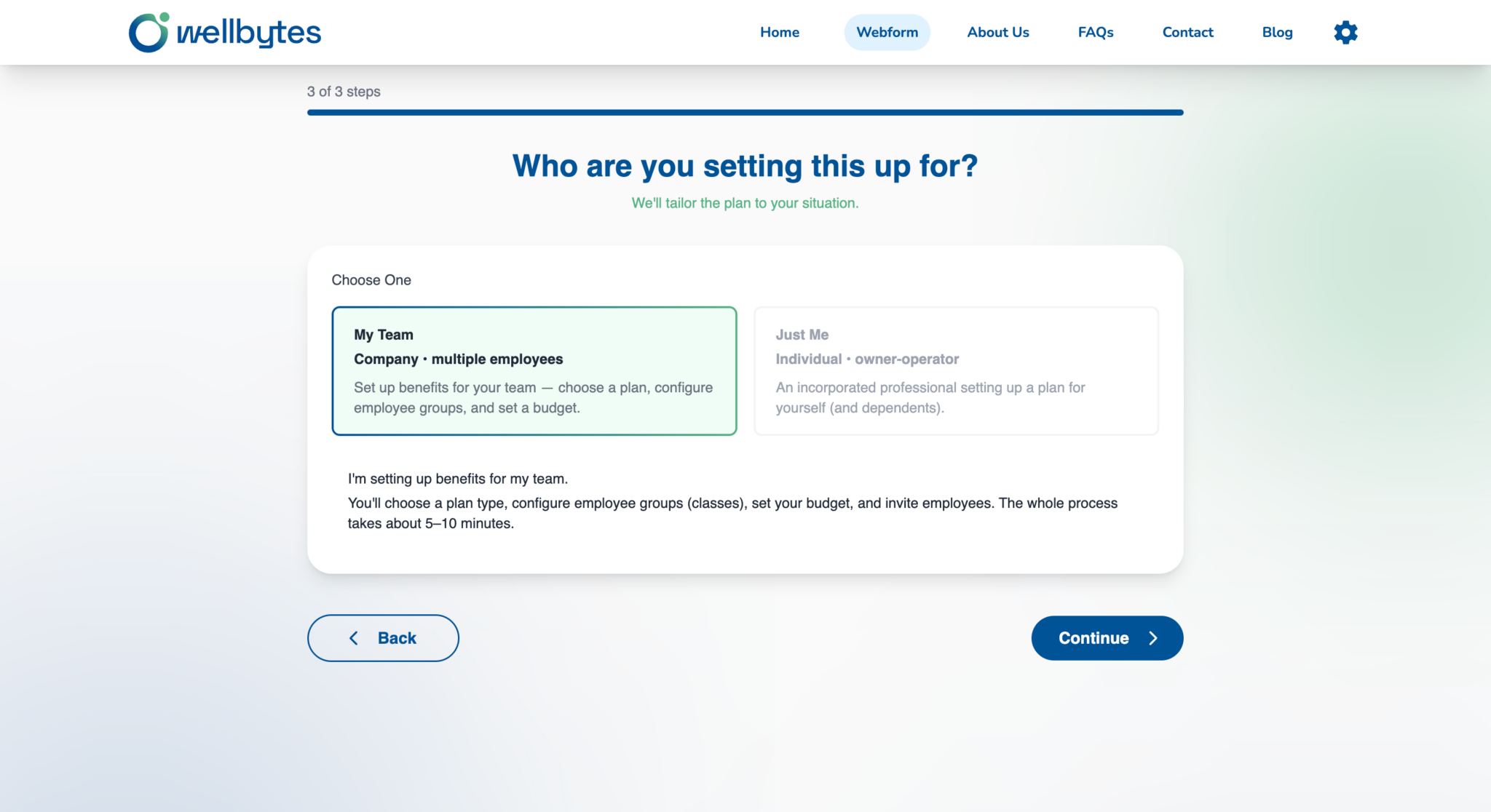
Choose My Team on Who are you setting this up for? Continue to package selection, then choose the funding and fee arrangement for your business.
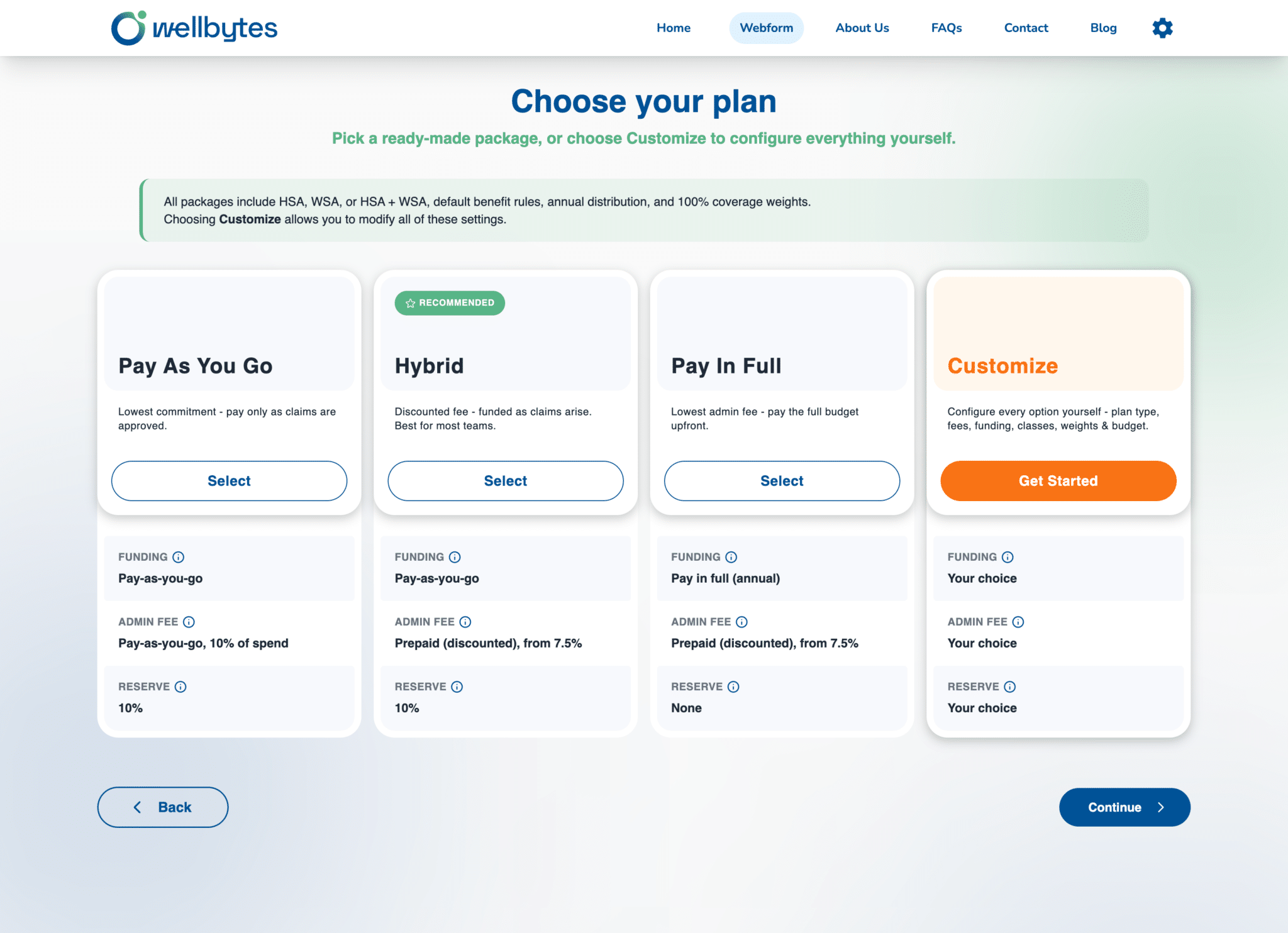
The package screen shows Pay As You Go, Hybrid, Pay In Full and Customize. Review the funding, administration-fee and reserve rows separately.
For a ready-made package, choose HSA, WSA or HSA + WSA on A few essentials. Enter the employee count and annual benefits budget; the combined program also shows percentage fields.
Customize brings the full settings onto one A few essentials page, including Employee Classes with Class, % and Headcount, plus Family Status Allocation and budget.
Ready when: The company has selected its team route and intended plan configuration.
04
Check class amounts and authorize the agreement
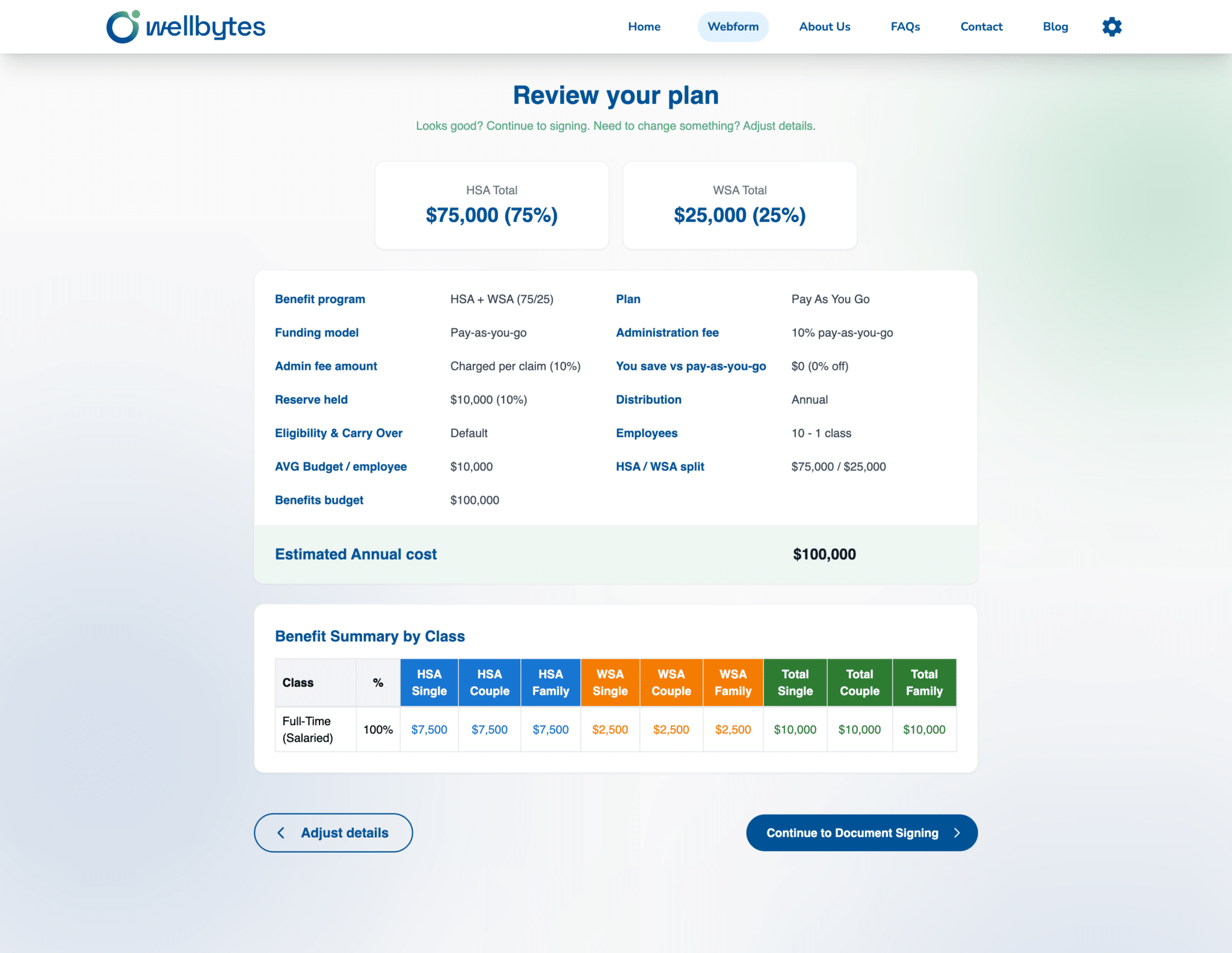
Choose Review Plan and inspect Benefit Summary by Class alongside the overall plan summary. Adjust details if needed, then continue to document signing.
Review the class shown, its percentage and the HSA/WSA amounts for Single, Couple and Family. A sample row is a review aid, not evidence that all your employees or classes have been enrolled.
On Complete and Sign, the authorized representative reads the agreement, provides an electronic signature and reviews the required acknowledgements before choosing Submit. The marketing-communications choice is optional.
Ready when: The signed application reflects the intended company and benefit design.
05
Prepare for activation and employee access
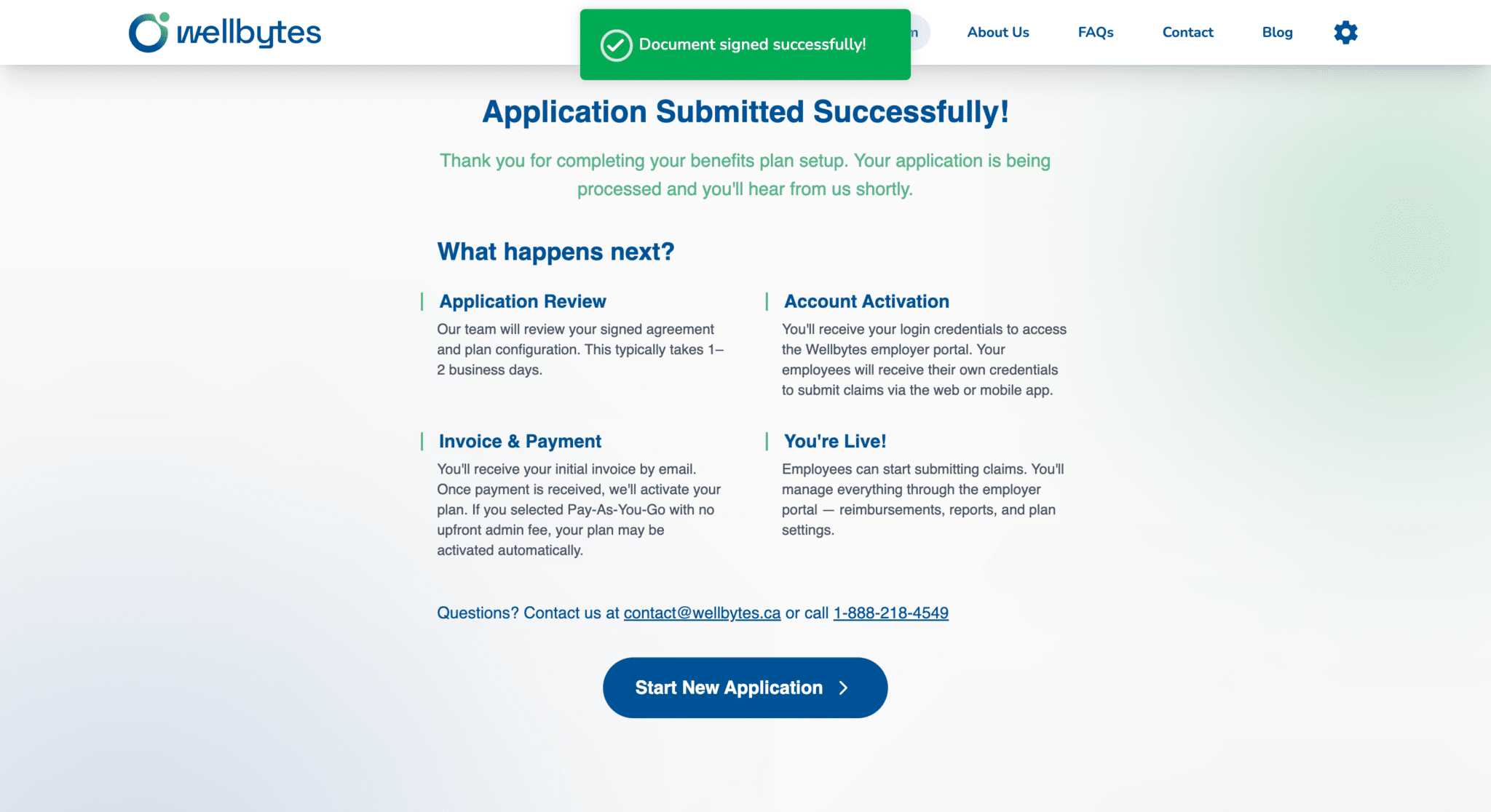
After Application Submitted Successfully!, follow the review, invoice/payment and account-activation instructions. Confirm readiness before announcing that employees can start using the plan.
The confirmation describes employer-portal access and separate employee credentials. Track the follow-up instructions for your own application rather than assuming a specific activation time.
Keep your intended employee list ready and follow the enrollment instructions provided by Wellbytes. Share the accepted plan information once participant access is confirmed.
Ready when: The employer knows what remains before employee access and benefits begin.
Before you finish
Use these checks to identify anything that still needs attention.
Company, business number and administrator details checked.
My Team route, benefit budget and class summary reviewed.
Application follow-up, funding and employee-access responsibilities assigned.
Questions to resolve
Confirm any unclear choice before relying on a new or changed benefit.
Does the class summary enroll employees?
The supplied review screen summarizes class benefit amounts. It does not show individual enrollment or prove that employee accounts have been created. Follow the enrollment instructions provided for your plan.
When should we announce benefits?
Prepare employee communications while the application is reviewed. Confirm plan activation, effective dates and participant access before telling employees benefits are available.
