
How It Works · Setup guide
Fund Allocation
Set the annual benefits budget, check the estimated amount per employee and review the HSA/WSA allocation. Keep benefit amounts separate from funding payments, fees and reserves.
Before you start
For the employer administrator and the person responsible for benefit budgets, invoices and plan funding.
Prepare
Have the essentials ready
Gather your company, participant and plan information before making changes.
Follow the steps
Work through the setup
Use the steps and completion checks to keep the plan information consistent.
What to prepare
Keep the relevant information and accepted plan documents at hand.
The intended package and benefit program.
Employee count and the total annual benefits budget.
The intended HSA/WSA split, where applicable, and the person approving payments.
Your setup steps
Review each stage against the information and terms for your own plan.
01
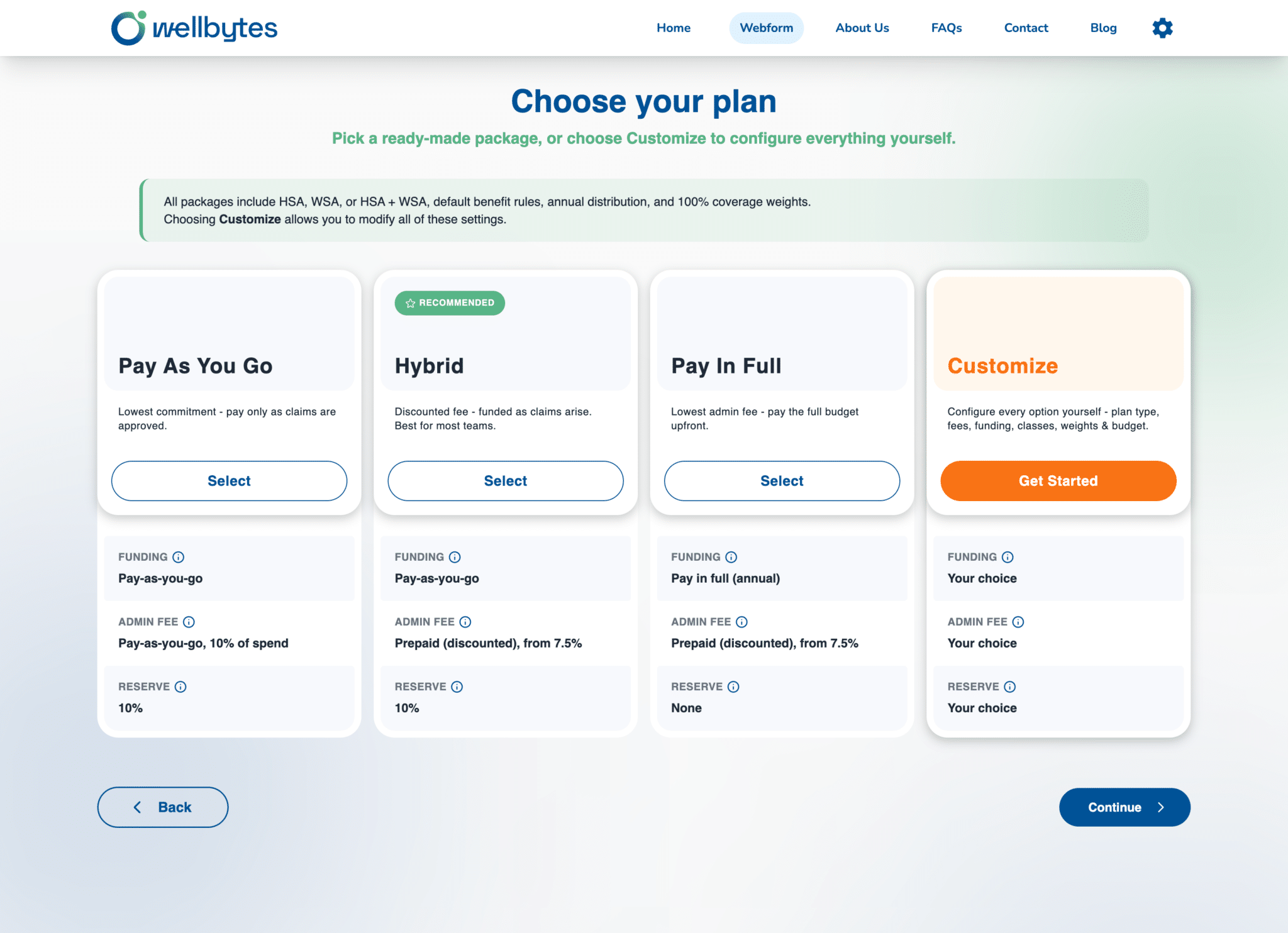
Compare package funding and fee settings
On Choose your plan, compare the Funding, Admin Fee and Reserve rows. Select the package that matches the business’s intended payment arrangement.
Pay As You Go shows pay-as-you-go funding and administration fees. Hybrid shows pay-as-you-go funding with a prepaid administration fee. Pay In Full shows annual upfront funding and a prepaid administration fee.
Customize is the route for different settings. Use the actual terms shown for your application to confirm rates, reserves and payment obligations; do not treat a screenshot as a quote.
Customize also shows Budgeted monthly as a funding option. Review Distribution separately: Annual and Monthly describe benefit distribution rather than administration-fee billing.
Ready when: You understand the selected package’s funding, fee and reserve arrangement.
02
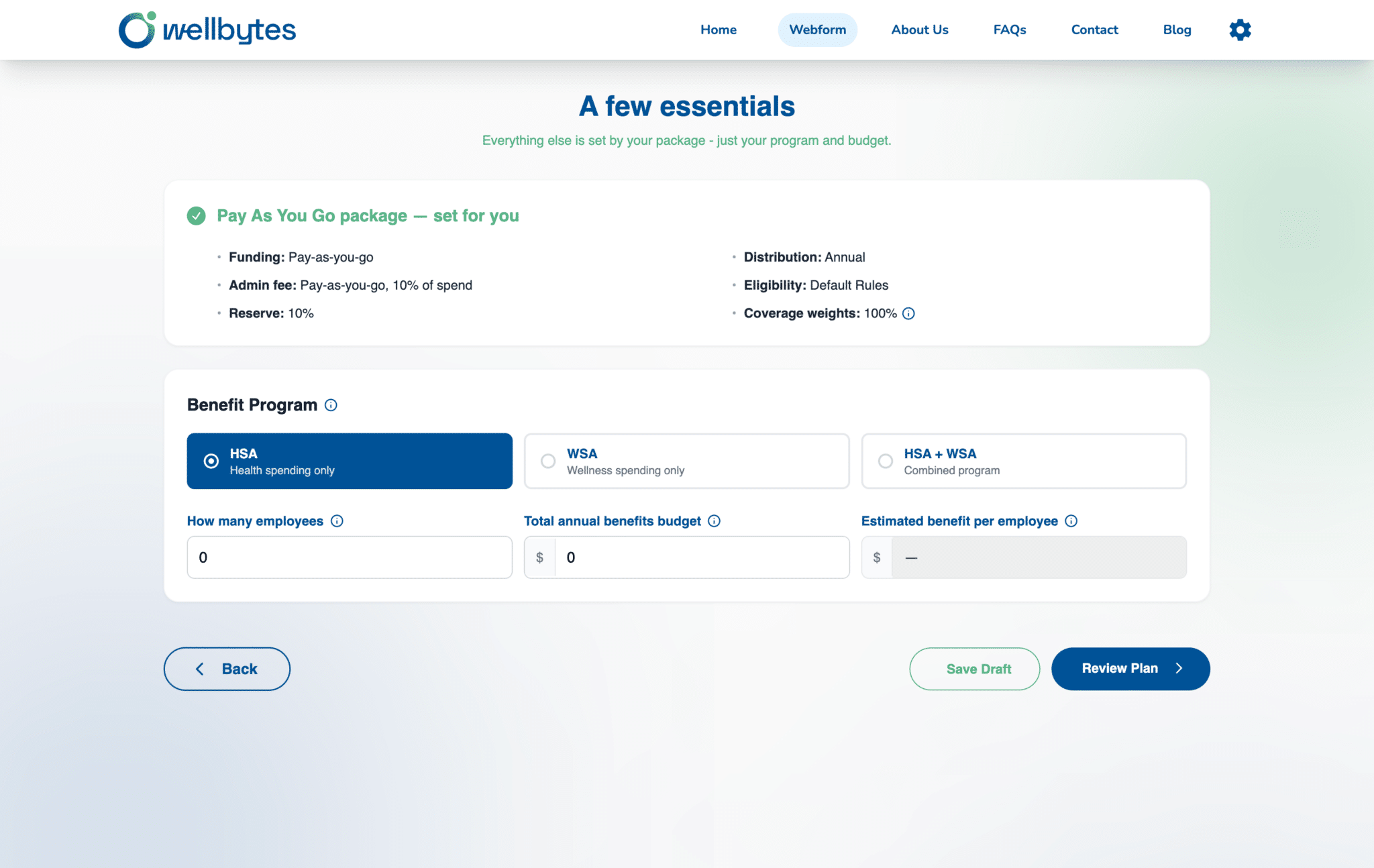
Enter employee count and annual budget
On A few essentials, enter How many employees and Total annual benefits budget. Check the read-only Estimated benefit per employee before continuing.
Use the participant count intended for this setup. If the estimate is unexpected, check both inputs and any applicable plan rules before reviewing the plan.
For illustration, a $12,000 annual budget divided among 12 employees is $1,000 per employee before any applicable allocation rules. This arithmetic is an example, not a quote or an allowance recommendation.
In Customize, employee counts are entered as Headcount within Employee Classes. Review the Live summary, class percentages and Family Status Allocation together with the budget.
Ready when: The count, budget and estimated amount are consistent with the intended plan.
03
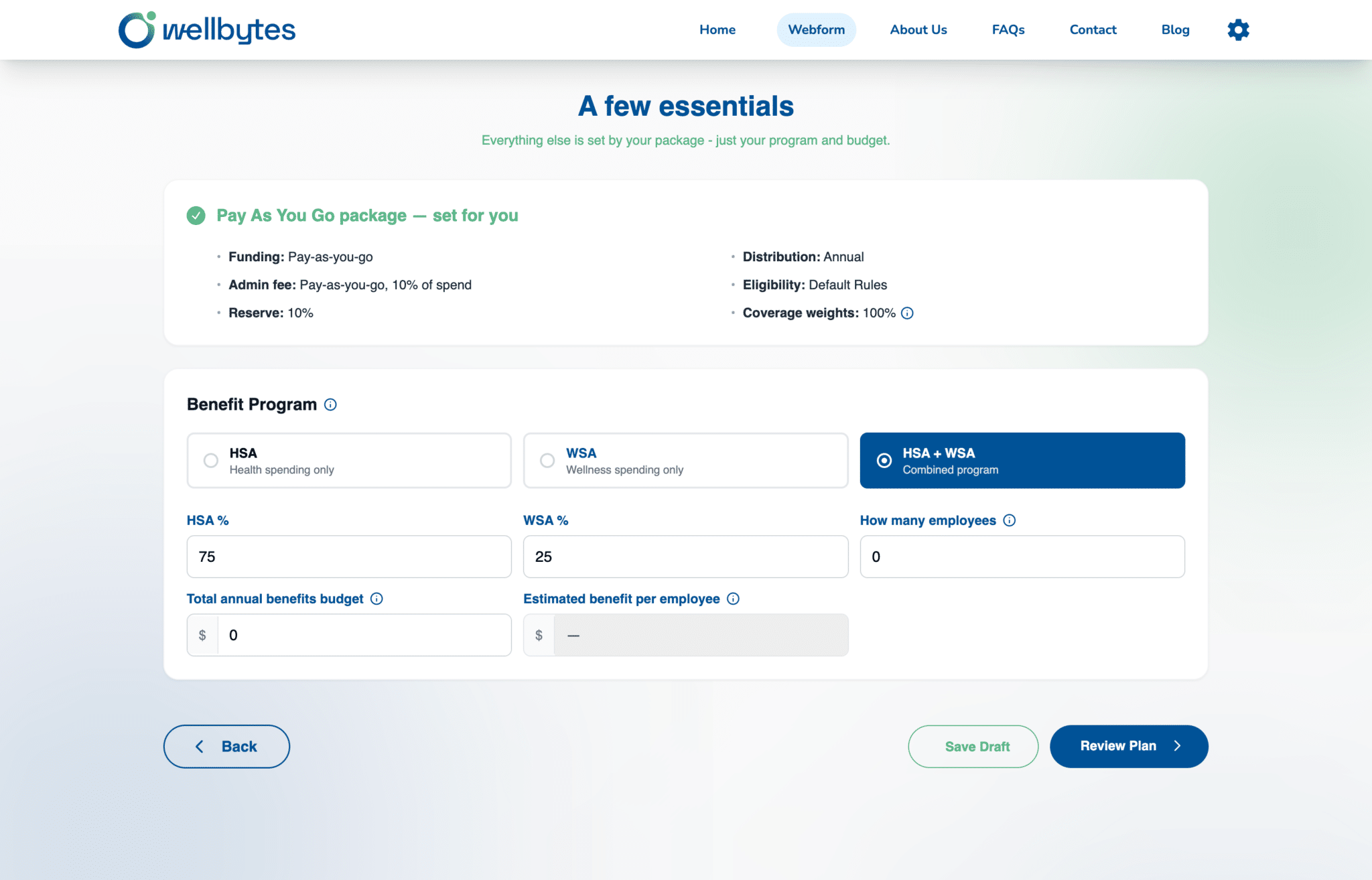
Review the HSA and WSA allocation
Select the Benefit Program. If you choose HSA + WSA, review HSA % and WSA % and enter the intended allocation before choosing Review Plan.
HSA and WSA are separate benefit accounts. For a combined program, choose percentages that together allocate the whole budget; the 75/25 split in the example screenshot is an example.
For illustration, a $12,000 budget split 75% HSA and 25% WSA represents $9,000 and $3,000 respectively. Expense and tax rules differ between the accounts; an allocation does not determine claim eligibility.
Ready when: The selected program and account allocation reflect the business’s intentions.
04
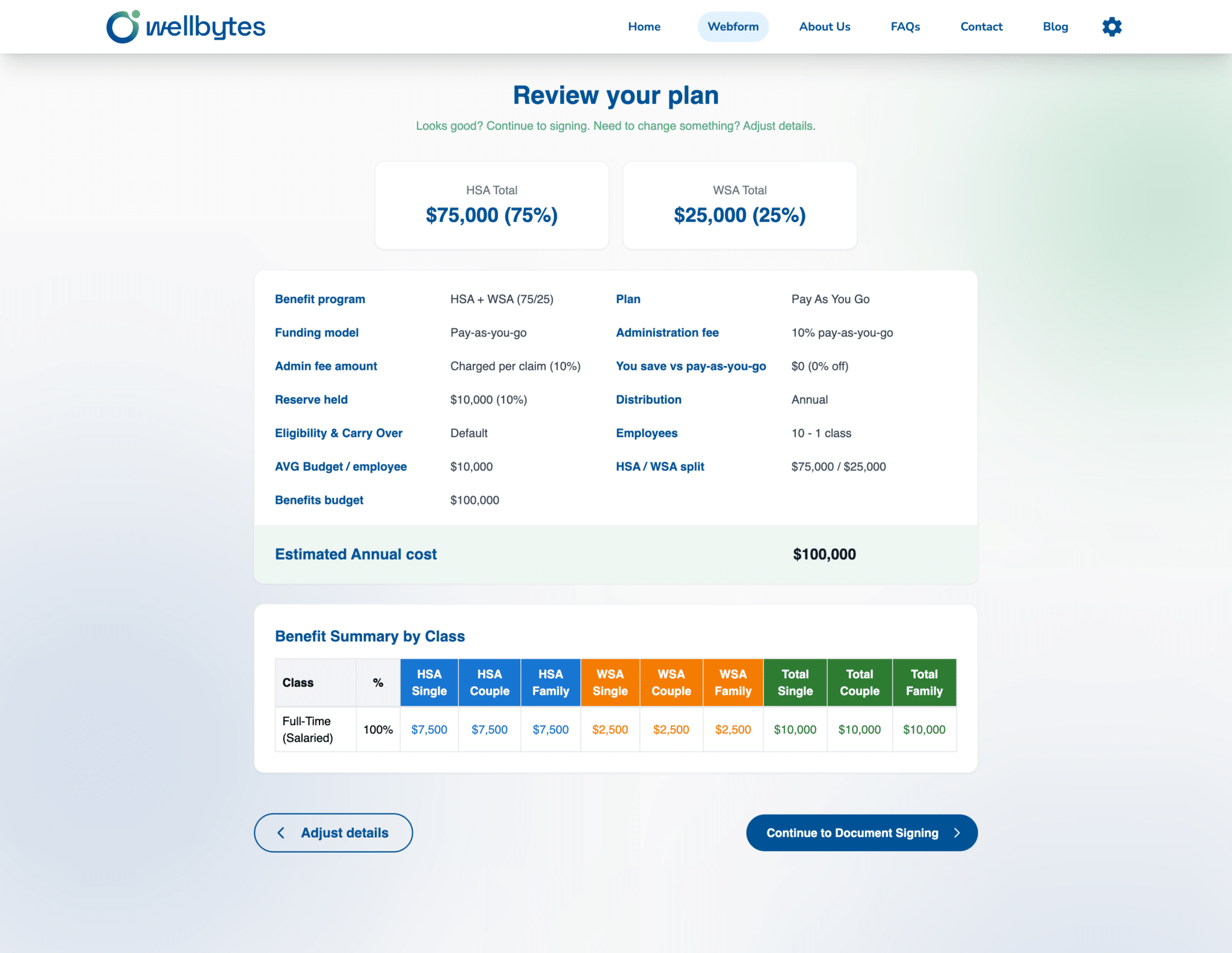
Check the totals and class summary
On Review your plan, check HSA Total, WSA Total, Benefits budget and AVG Budget / employee. Review Benefit Summary by Class before continuing to signing.
Inspect the class percentage and Single, Couple and Family amounts shown for each account. Use Adjust details if the review differs from what you intend.
Check administration fees and Reserve held separately from the benefit budget. A displayed Estimated Annual cost should not be assumed to include taxes or every payment requirement; confirm the accepted terms and invoice.
Ready when: The reviewed account totals and class amounts match the intended allocation.
05
Follow the application’s payment instructions
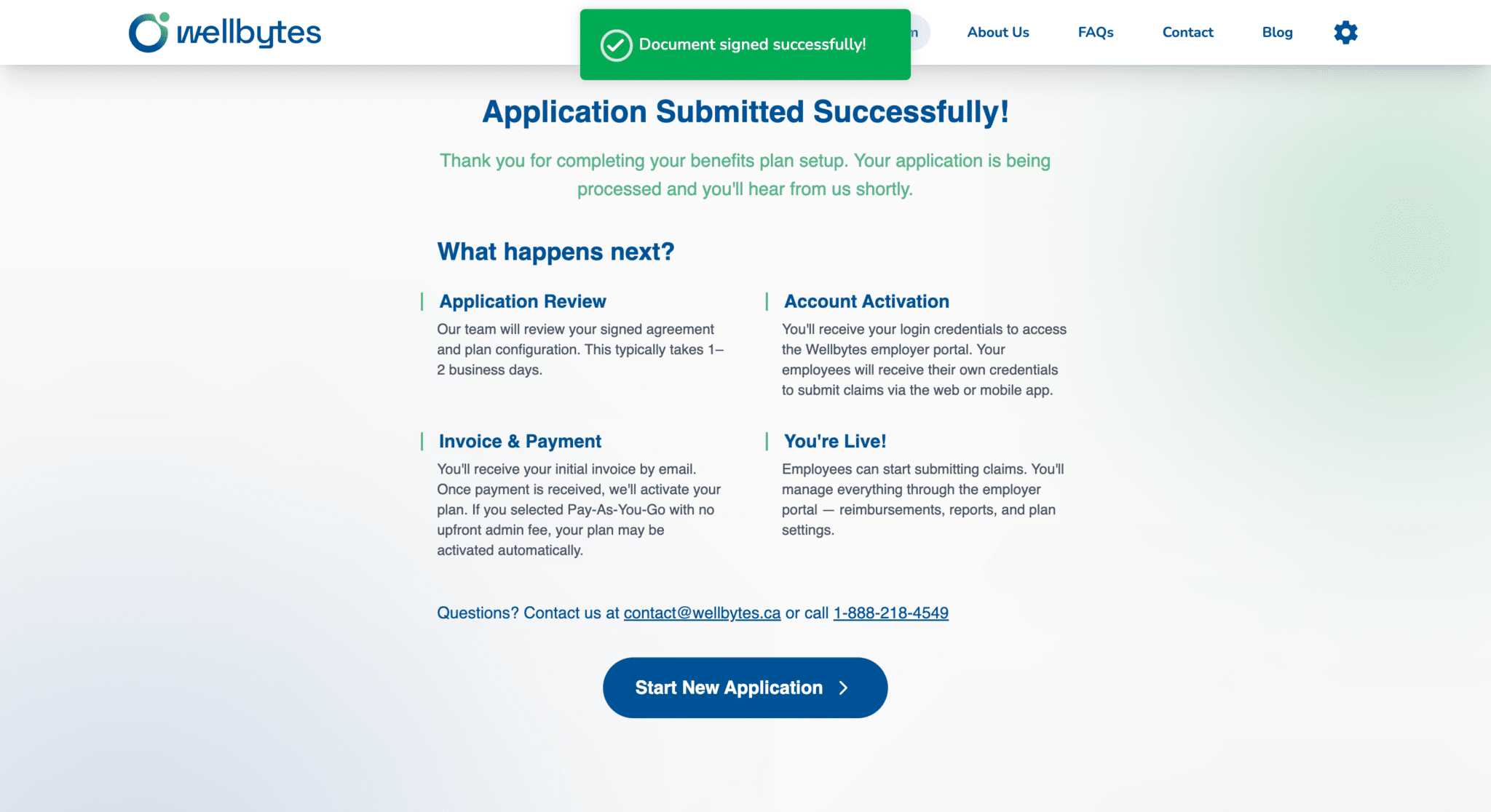
After review and signing, use the confirmation’s Invoice & Payment instructions. Check the initial invoice and ask Wellbytes to confirm any unclear funding or payment requirement.
The confirmation distinguishes application review, invoice/payment and account activation. Follow the instructions for your selected package; no payment is made by reading this guide.
An employee benefit amount and an employer payment are different records. Confirm activation and funding readiness before relying on benefits, then reconcile ongoing activity using the records available for your plan.
Ready when: The person responsible for payment understands the invoice and next activation step.
Before you finish
Use these checks to identify anything that still needs attention.
Employee count, annual budget and estimate reviewed.
HSA/WSA allocation and class totals checked.
Fees, reserve, taxes and payment timing confirmed separately from the benefit budget.
Questions to resolve
Confirm any unclear choice before relying on a new or changed benefit.
Is the benefits budget the full payment due?
Do not assume that it is. The form displays a benefits budget, administration-fee information and a reserve separately. Confirm the selected terms, applicable taxes and invoice before paying.
Does the screenshot show a required allocation?
No. The 75/25 split and demonstration amounts illustrate the form. Choose the allocation appropriate to your accepted plan; screenshots are not a quote or a universal benefit limit.
