
How It Works · Setup guide
Flexible Plan Configuration
Configure your plan on one page. Review the benefit program, funding and fee choices, then set the rules, employee groups, family weights and budget before signing.
Before you start
For an employer deciding which health and wellness benefits to offer and how those choices apply to employee groups.
Prepare
Have the essentials ready
Gather your company, participant and plan information before making changes.
Follow the steps
Work through the setup
Use the steps and completion checks to keep the plan information consistent.
What to prepare
Keep the relevant information and accepted plan documents at hand.
The benefits you intend to offer: HSA, WSA or a combined program.
Employee count, annual budget and intended HSA/WSA allocation.
The plan rules you need and the person authorized to accept the agreement.
Your setup steps
Review each stage against the information and terms for your own plan.
01
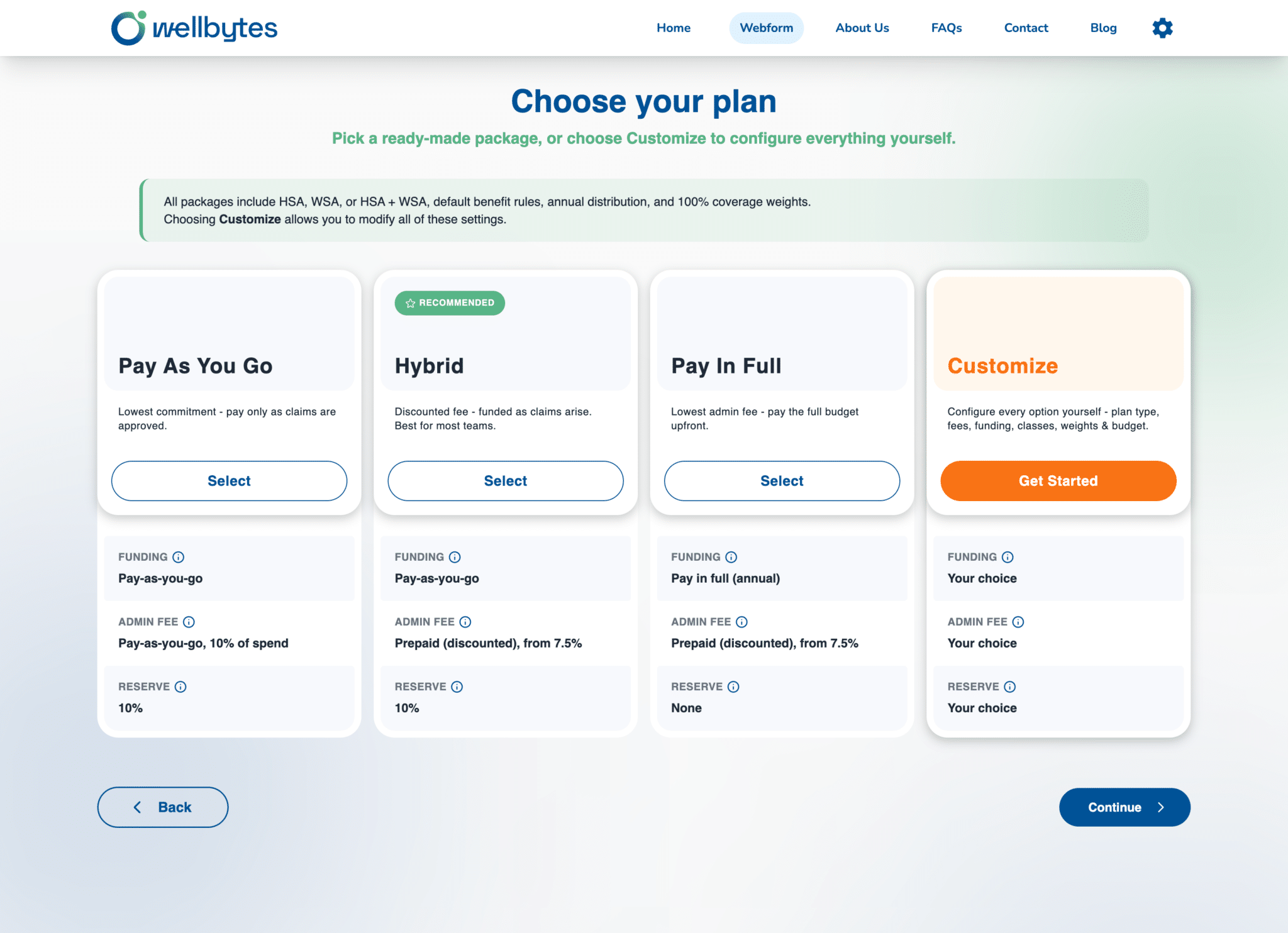
Choose Customize and review the Live summary
Select Customize on Choose your plan. The next A few essentials page shows all configuration sections together, with a Live summary alongside them.
The summary displays HSA Total, WSA Total, Admin fee, Funding, Employees, Reserve, You save, Budget and Est. cost. Use it to cross-check the configuration as you work.
A summary is a review aid. Confirm the final agreement, applicable taxes, reserve and invoice requirements before treating an estimate as the full payment due.
Ready when: You can identify the custom settings and the summary used to review them.
02
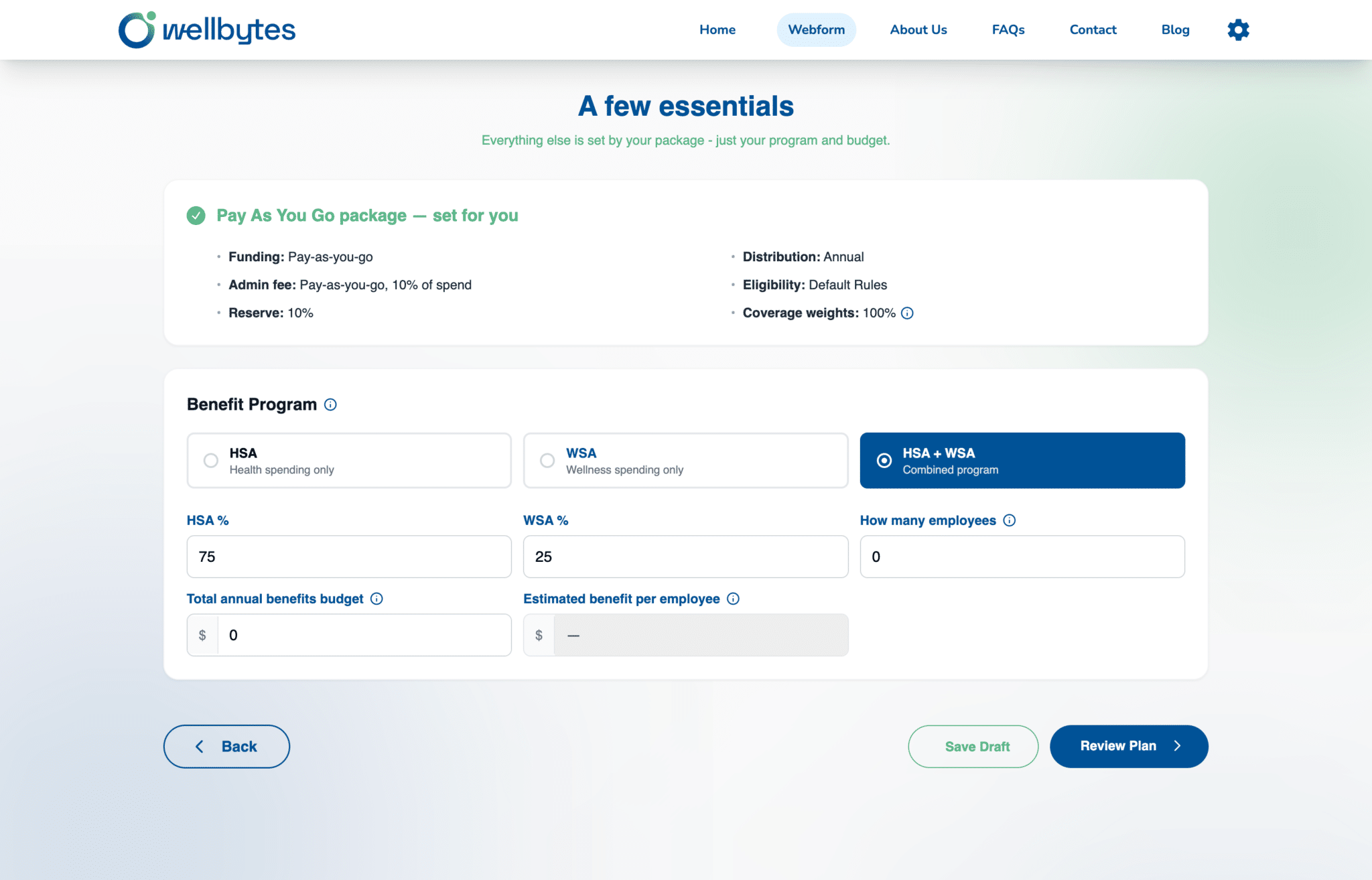
Select the program, fee billing and funding model
Review Benefit Program, Admin fee billing and Funding model. Choose HSA, WSA or HSA + WSA, then the fee and funding arrangements for your business.
Admin fee billing offers Prepaid and Pay as you go. Funding model offers Pay-as-you-go, Pay in full (annual) and Budgeted monthly. Fee billing and reimbursement funding are separate decisions.
Distribution offers Annual and Monthly. Review Reserve rate (%) as displayed for the selected arrangement; do not assume the example rate applies to every plan.
Ready when: The program, fee, funding and distribution selections reflect the intended arrangement.
03
Review eligibility and carry-over settings
Under Eligibility & Carry Over, review Customize benefit rules? and the displayed HSA/WSA carry-over, waiting-period, proration, termination and claims-submission fields.
The fields are HSA Funds Carry Over, WSA Funds Carry Over, Waiting Period (Days), Prorate Class, Termination Usability (Months) and Claims Submission (Months). Check the units and accepted plan rules.
The example shows Customize benefit rules? set to No and the related fields muted. Use the customization choice when you need a different rule, then review the resulting settings before signing. Displayed defaults are not universal eligibility rules.
Ready when: The rule selections and units are understood and consistent with the intended plan.
04
Configure classes, family weights and budget
Under Employee Classes, review Class, % and Headcount. Then review Family Status Allocation and enter Total annual benefits budget.
Use Add a predefined class with Add class or use Custom class for a different group. Reconcile headcounts and percentages with your intended employee groups.
Family Status Allocation shows relative Single, Couple and Family weights, with Family as the 100% baseline. Check Estimated benefit per employee and the Live summary after completing the budget; example weights are not mandatory values.
Ready when: The class structure, coverage weights and budget reflect the intended design.
05
Review the complete configuration before signing
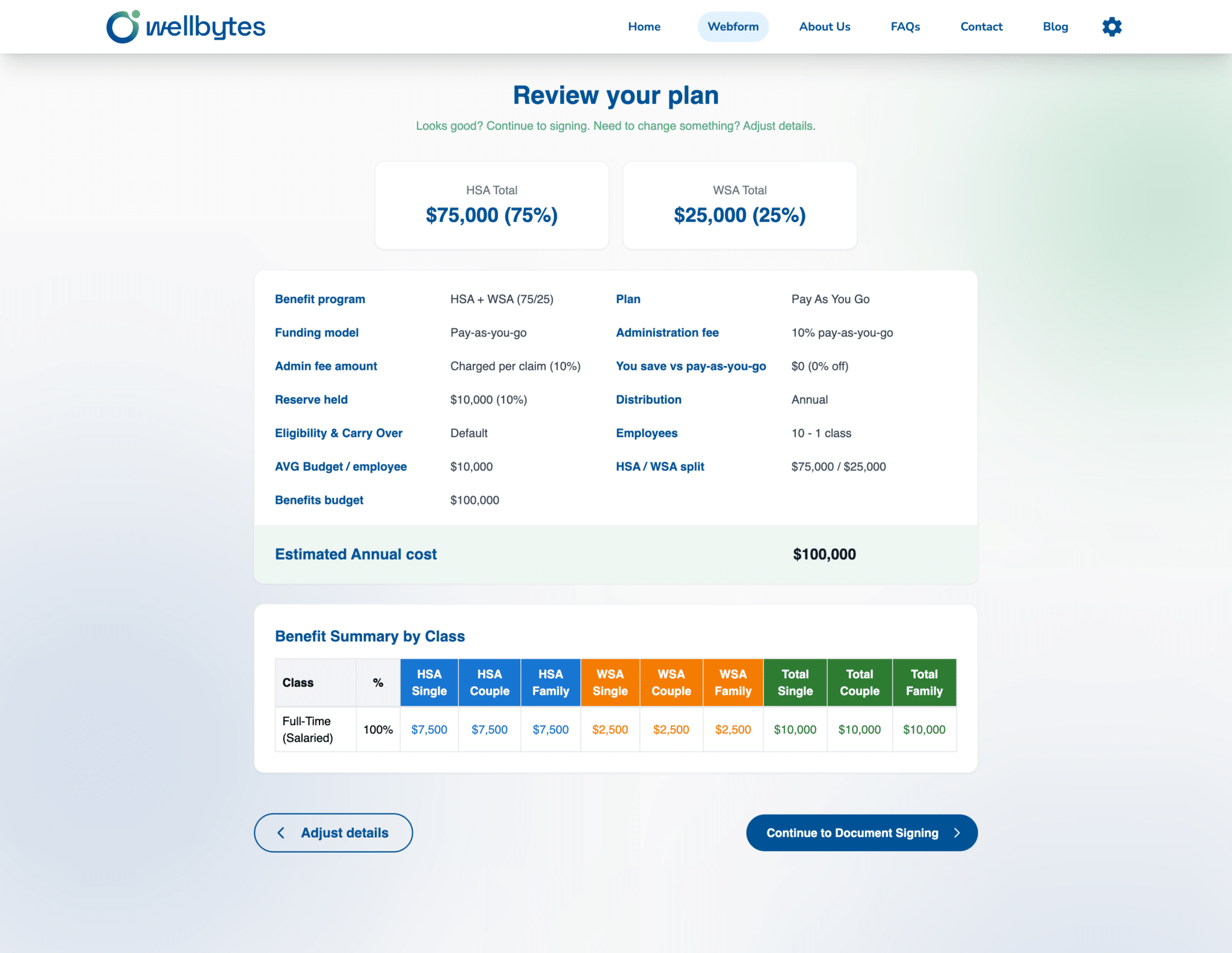
Choose Review Plan. Check the plan summary and Benefit Summary by Class; use Adjust details for corrections or Continue to Document Signing when ready.
Review the program, fees, funding, reserve, distribution, eligibility/carry-over summary and class amounts together. Confirm that the actual agreement reflects the choices you intend.
Read the agreement, provide the authorized electronic signature and review the required acknowledgements before Submit. Follow the confirmation’s review, payment and activation instructions.
Ready when: The complete configuration is reviewed before the signed application is submitted.
Before you finish
Use these checks to identify anything that still needs attention.
Program, fee billing, funding, distribution and reserve reviewed separately.
Benefit rules, class counts/percentages and family weights checked.
Budget, Live summary and final plan review reconciled before signing.
Questions to resolve
Confirm any unclear choice before relying on a new or changed benefit.
Are these settings on separate pages?
The Customize route brings them together on A few essentials. Work through the sections, then choose Review Plan to inspect the complete result before signing.
Can employees move the HSA/WSA split themselves?
These controls configure the employer plan. They do not establish unrestricted employee transfers between accounts. Confirm any participant choice and its restrictions before offering it.
