
User guide · Employees and account holders managing covered family records
Add, update and deactivate your dependants
Manage family records in the Wellbytes app by opening Dependants, adding the requested information, checking the review status and using the edit or deactivation action when circumstances change. Your employer’s plan and applicable eligibility rules determine whose expenses can be claimed.
Before you start
- Access to your own Wellbytes account and the employer’s plan information.
- Accurate information for the person you want to add or update.
- Any relationship, student-status or disability evidence actually required by the plan and app.
- The relevant effective dates and any outstanding claims if you are changing or deactivating a record.
Screenshots are earlier Wellbytes interface examples. Follow the labels and instructions in your current account.
At a glance
Keep family records accurate from addition to review
Add a record
Enter the requested dependant information and confirm it.
Check review
Look for the decision or a request for supporting information.
Keep it current
Edit or deactivate a record when family circumstances change.
Open the dependant list
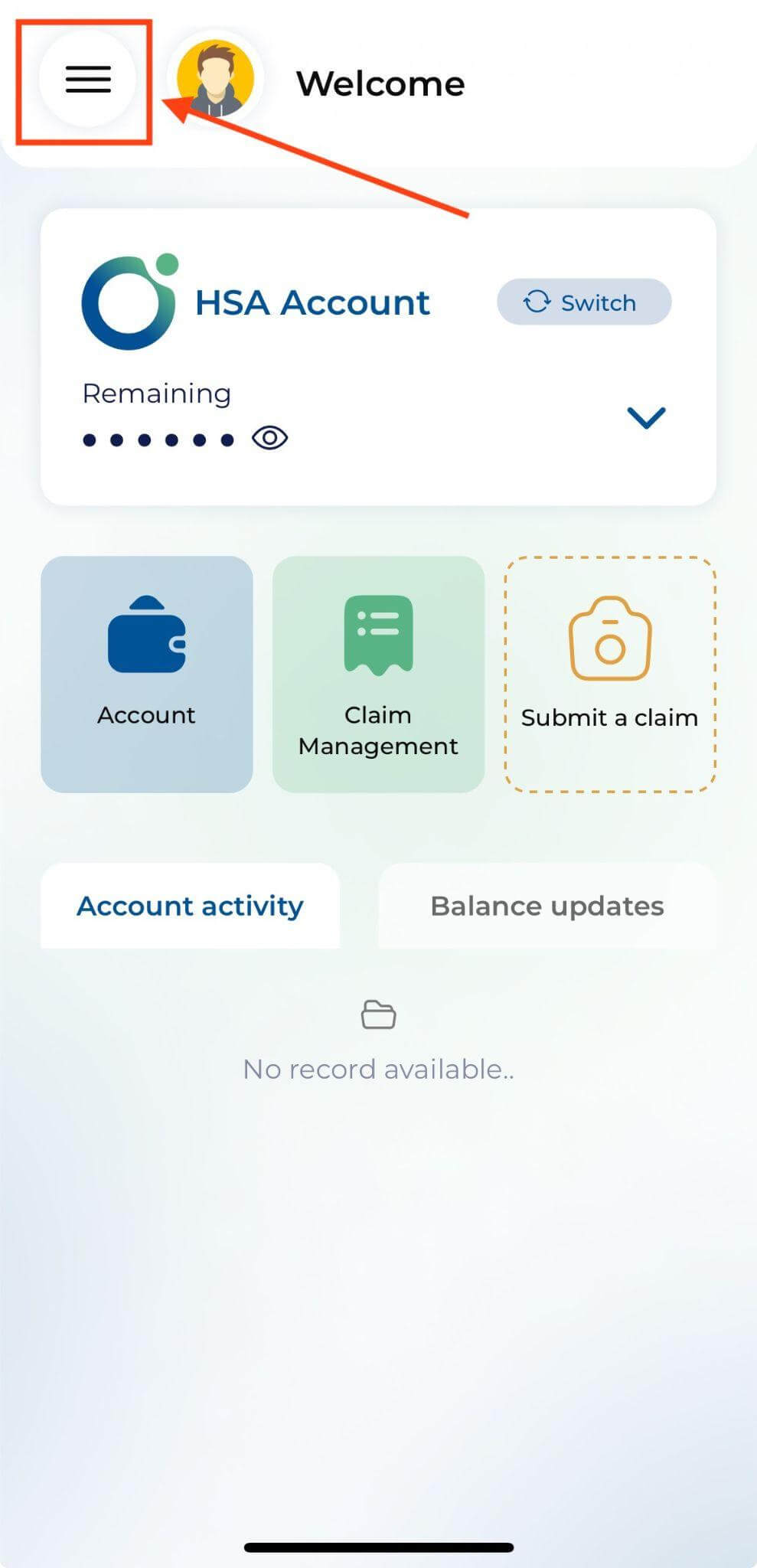
Choose the Home icon on the app’s main screen, then select Dependants to open View Dependant. Some illustrated screens use the spelling Dependents.
Review existing records before adding another person. Depending on the current interface, a dependant may also have been entered during onboarding.
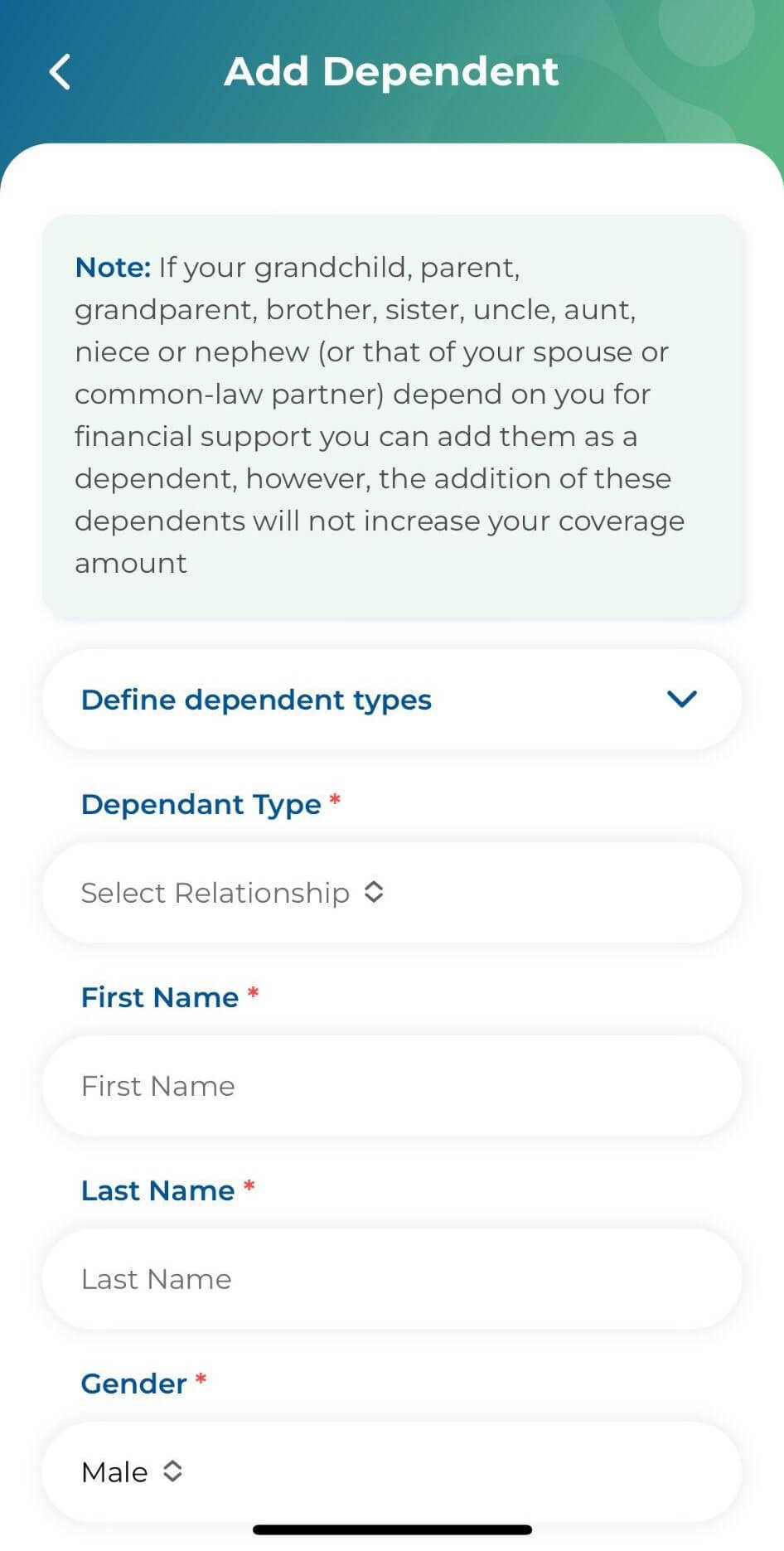
Start an Add Dependant record
Choose the Add Dependants symbol at the upper right of the illustrated list. Complete the information requested on the Add Dependant screen.
Use the actual relationship and plan requirements. Selecting a relationship label or adding a name does not itself establish entitlement to reimbursement.
Review the details and confirm
Select Add when the required information is complete. Check the confirmation dialog carefully before choosing Confirm.
Correct any inaccurate information before relying on the record for a claim. Follow the current app’s required fields if they differ from the illustrated form.
Provide any required supporting documents
Use the app’s document field when the actual plan requires student-status, disability or other supporting evidence. Submit the information requested for that person’s circumstances.
Student and disability evidence requirements depend on the actual plan. Do not apply one age limit to every Canadian PHSP or assume every student qualifies on the same terms.
Check the record’s review status
Return to View Dependant and check the status displayed with the record. Pending means review is still outstanding; check for a decision or request for further information.
After approval, the account holder can submit eligible expenses for that covered person under the plan. Approval does not guarantee payment of every expense or authorize sharing the account holder’s login.
Update an existing dependant
Open the relevant record and select Edit Dependant to reach the illustrated Update Dependant screen. Change the required information and select Apply.
Return to the record and review the saved details.
Deactivate a record when appropriate
Use the available Deactivate action and follow the current app’s confirmation process. Confirm the effective date and how any outstanding claims should be handled.
An app action does not determine the underlying legal or plan entitlement by itself. Ask Wellbytes or your plan administrator how to handle an unclear coverage change before submitting further expenses.
Check which family relationships the plan covers
A qualifying Private Health Services Plan (PHSP) can cover specified family relationships, subject to the applicable rules and employer plan. Check the actual relationship and any household or other conditions before claiming.
| Relationship | What to check |
|---|---|
| Spouse | The person is your legally married partner and meets the plan requirements. |
| Common-law partner | The relationship meets the applicable common-law and plan conditions. |
| Child or partner’s child | Confirm the biological or adopted relationship and the actual coverage and documentation requirements. |
| Other relative | Confirm the relationship, household and other applicable PHSP and plan conditions. |
Check coverage separately from the family record
An approved record identifies the covered person for eligible claims. The available allowance, expense conditions and plan dates still govern each claim.
Keep the record current and select the correct covered person when claiming. If a relationship or coverage situation is unclear, resolve it before relying on reimbursement.
Before you finish
- The intended person appears once in the dependant list with accurate details.
- Required documents have been submitted and the review status is understood.
- Edits appear in the saved record.
- Any deactivation date and outstanding-claim instructions have been checked.
Resolve a problem
| What you see | What to check |
|---|---|
| The record remains Pending. | Check for a request for additional evidence or contact support about the outstanding review. |
| You are unsure which relationship or document applies. | Check the employer’s plan and ask the plan administrator or Wellbytes before selecting a category or submitting expenses. |
| A record needs deactivation but claims remain outstanding. | Confirm the effective date and applicable claim rules before completing the change. |
